
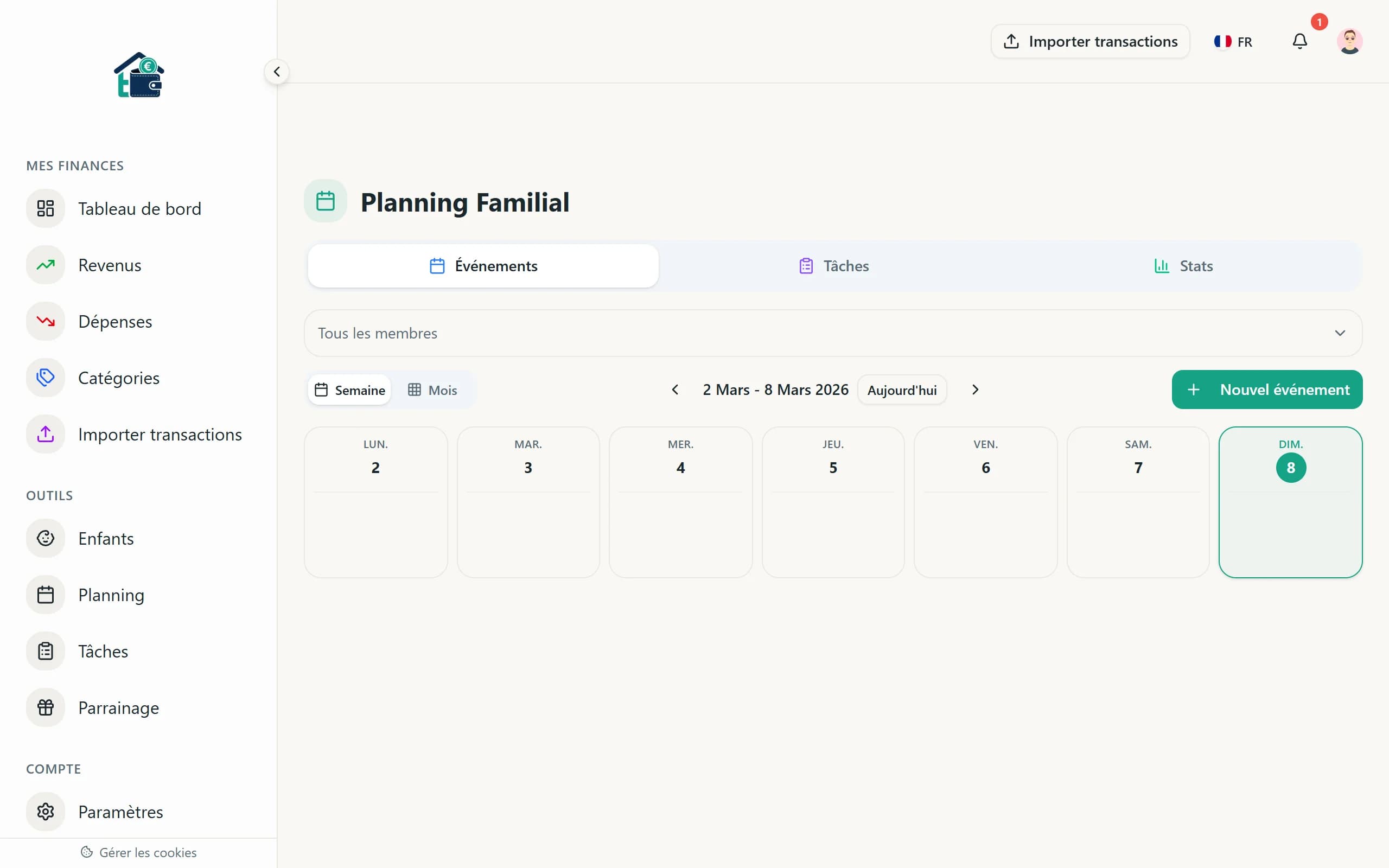
The Planning module helps your household organize tasks, events, and recurring chores in one place. It is available on the Famille+ plan.
Accessing Planning
Click "Planning" in the sidebar. You land on a calendar-style view showing the current week's tasks and events for your household.
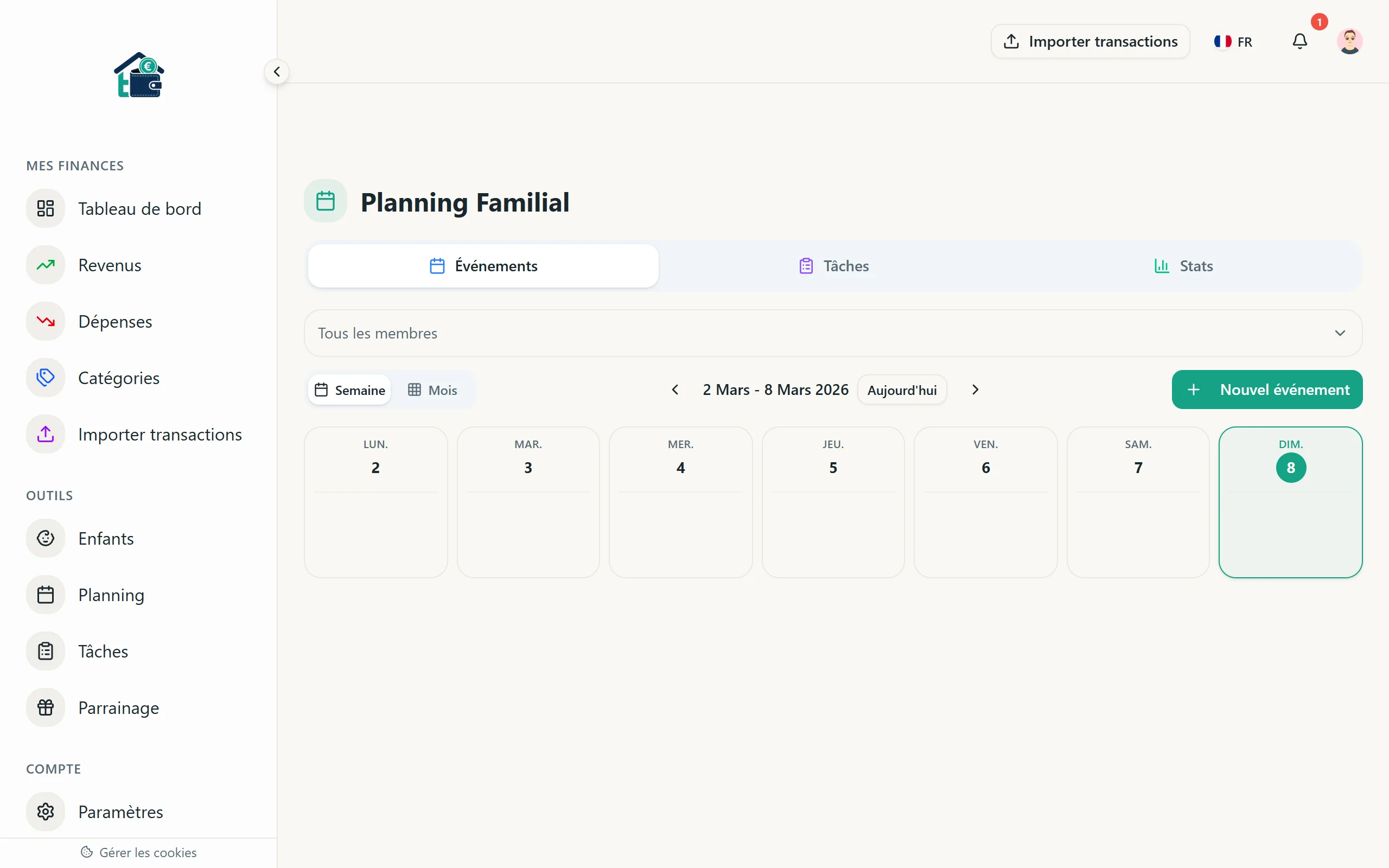 Planning main view
Creating a task
Click "Add task" and fill in:
- Title: What needs to be done ("Grocery shopping," "Clean the kitchen," "Pick up kids from school").
- Assigned to: Which household member is responsible.
- Date: When the task should be completed.
- Description: Optional details or notes.
Save it. The task appears on the planning board under the assigned date and member.
Task statuses
Each task has a status:
- Pending: Not started yet.
- Completed: Done. Click the checkmark to mark it complete.
Simple. No overengineered workflow -- just "to do" and "done."
Setting up recurring tasks
This is where Planning saves real time. For tasks that repeat regularly, configure recurrence when creating the task:
 Recurring task configuration
- Daily: The task appears every day.
- Weekly: Pick which days of the week (e.g., Monday and Thursday for trash duty).
- Biweekly: Every two weeks on the selected days.
- Monthly: Pick a day of the month (e.g., the 1st for rent reminders).
You can also set:
- End date: When the recurrence stops (optional).
- Excluded dates: Skip specific dates (holidays, vacations).
Recurring tasks are created automatically each day at 6:00 AM by a Cloud Function. Each instance is independent -- completing Monday's task does not affect Tuesday's.
Creating events
Events are different from tasks. They represent things happening at a specific time rather than things to do. Birthday parties, doctor appointments, school plays.
Click "Add event" and enter:
- Title: What is happening.
- Date and time: When it takes place.
- Members involved: Who needs to be there.
- Description: Location, notes, anything useful.
Events show up on the calendar alongside tasks but are visually distinct.
Event reminders
 Event reminder notification
Homoney sends reminders for events scheduled today. Reminders are processed each morning at 7:00 AM (Paris time). Members involved in the event receive a notification through the app's notification bell.
Practical use cases
Weekly chore rotation: Create recurring weekly tasks for each chore (vacuuming, dishes, laundry) and assign them to different members. Rotate assignments monthly.
School and activity schedule: Add recurring events for regular activities (soccer practice on Wednesdays, piano on Fridays). The whole family sees what is happening and who needs to be where.
Bill payment reminders: Create a monthly recurring task on the 1st ("Review monthly budget") or on specific dates ("Pay electricity bill on the 15th").
Meal planning: Create daily tasks for meal prep, assigned to whoever is cooking that day.
Tips
- Keep task titles short and specific. "Clean" is vague. "Vacuum living room" is actionable.
- Check the planning view at the start of each day. It takes 30 seconds and keeps everyone aligned.
- Use the member filter to see only your own tasks when the household view gets busy.
- Mark tasks as done when you finish them, not at the end of the day. It keeps the board accurate for everyone else.
Planning works best when every household member checks it regularly. It replaces the mental load of remembering who does what and when.
