
Manually entering every transaction gets old fast. If you are on the Famille or Famille+ plan, Homoney lets you import your bank statement in a few clicks. Here is exactly how to do it.
Bank statement import is available on Famille (CSV, OFX) and Famille+ (CSV, OFX and PDF) plans.
Step 1: Download your bank statement
Log in to your bank's website or app. Find the export or download option (usually under "Transactions" or "Account history"). Select the date range you want -- one month is a good starting point.
Which format should you choose?
- CSV: The most common format. One line per transaction. Works with every bank.
- OFX: A standardized banking data format. If your bank offers it, use it -- field detection is more reliable.
- PDF (Famille+ only): Got a PDF bank statement? Homoney can read it automatically. It extracts transactions directly from the document with no extra work on your part. Banks like Boursorama and Societe Generale are natively supported, and more formats are added regularly.
Save the file somewhere you can find it.
Step 2: Open the Import page and upload your CSV
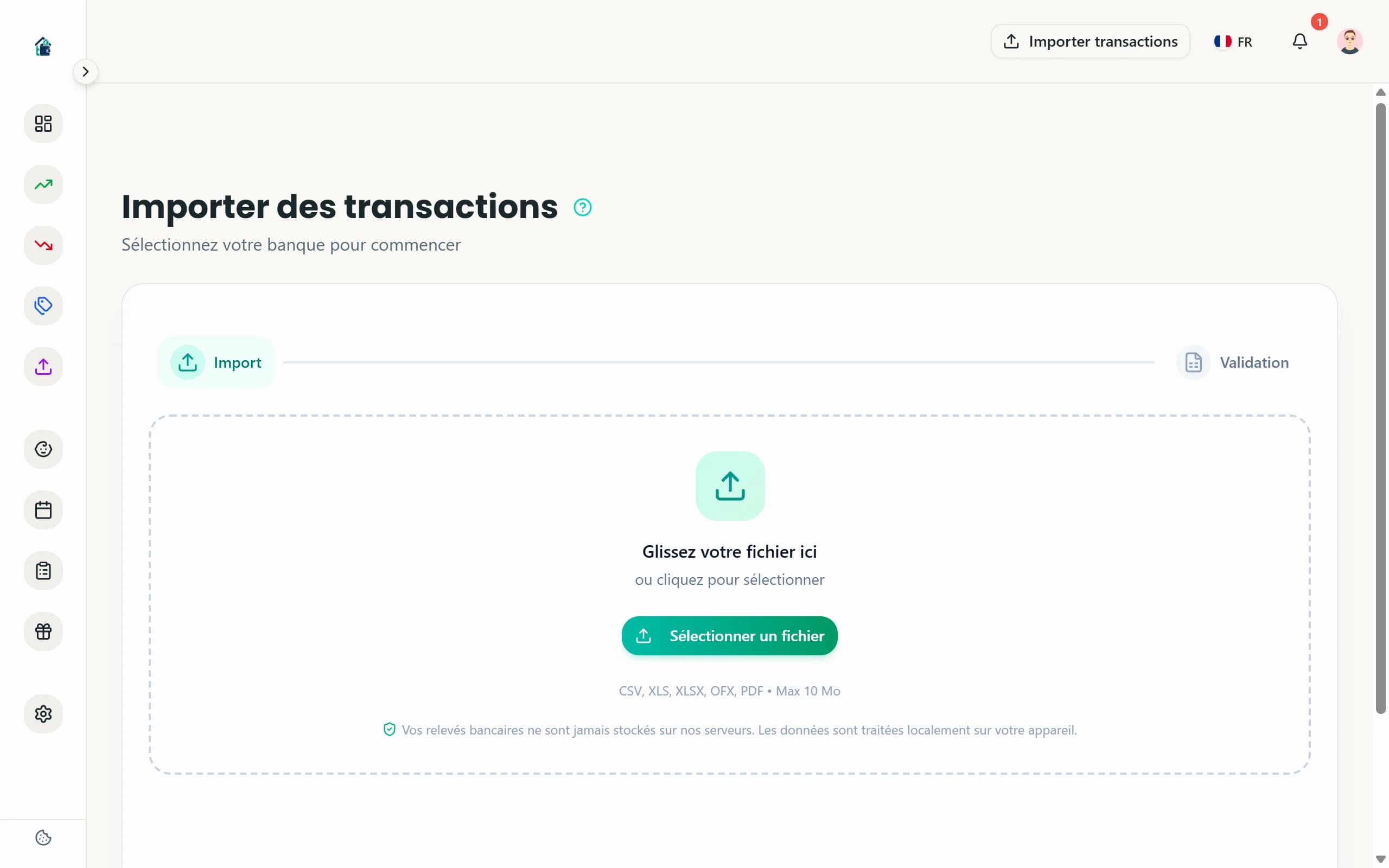
In Homoney, click "Import" in the sidebar navigation. You will land on the import page with a file upload zone. Drag and drop your CSV file, or click to browse. Homoney reads the file and shows you a preview of the detected transactions.
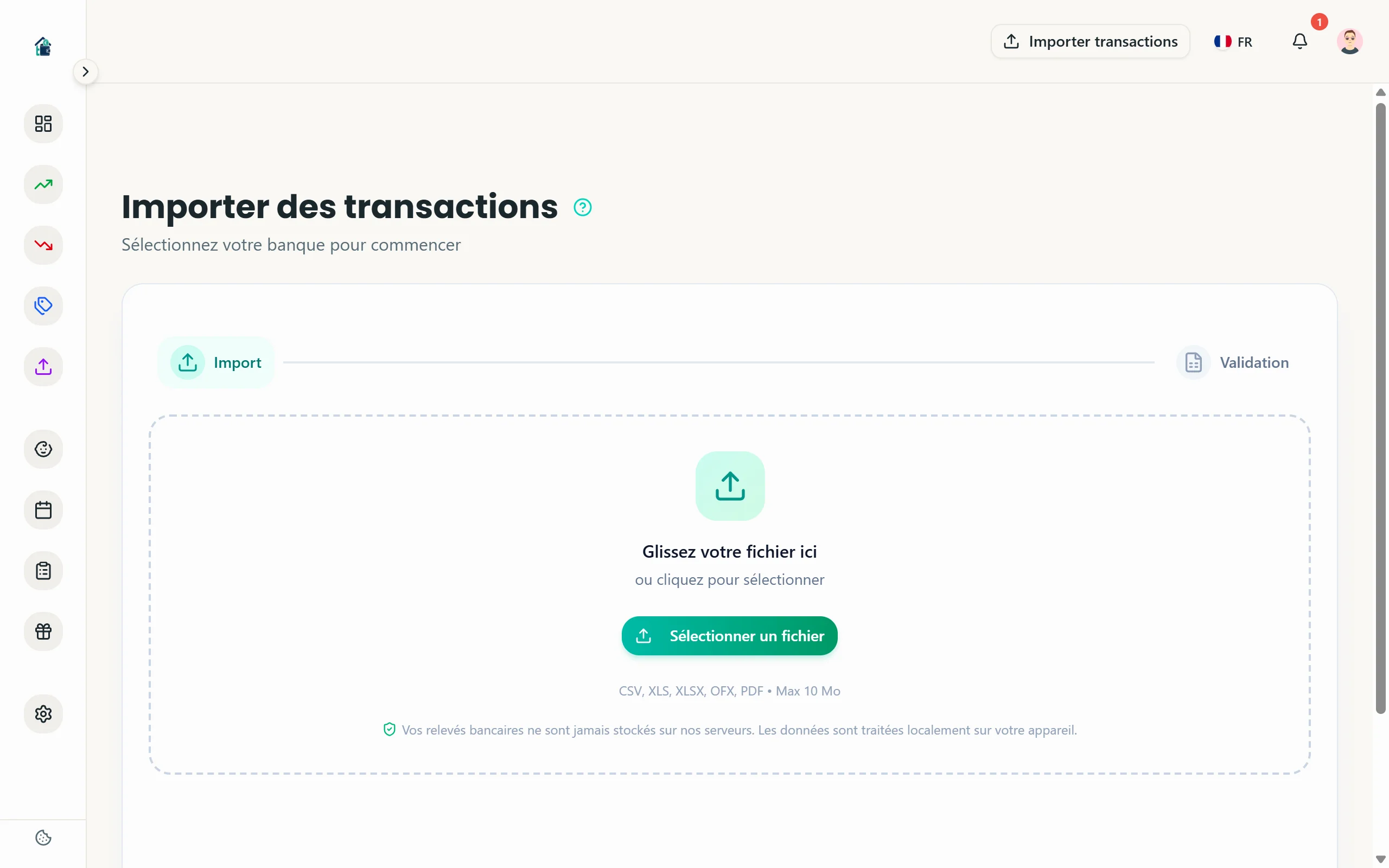 Import page with file upload zone
At this stage, review the preview:
- Are dates parsed correctly?
- Do amounts look right (positive for income, negative for expenses)?
- Are descriptions showing up?
If the format looks off, check that you downloaded the right file type. Some banks offer multiple CSV formats -- pick the simplest one.
Step 3: Column mapping
Homoney detects the columns in your CSV and maps them to the right fields (date, amount, description). If the auto-detection is off, you can manually adjust the mapping using the dropdowns.
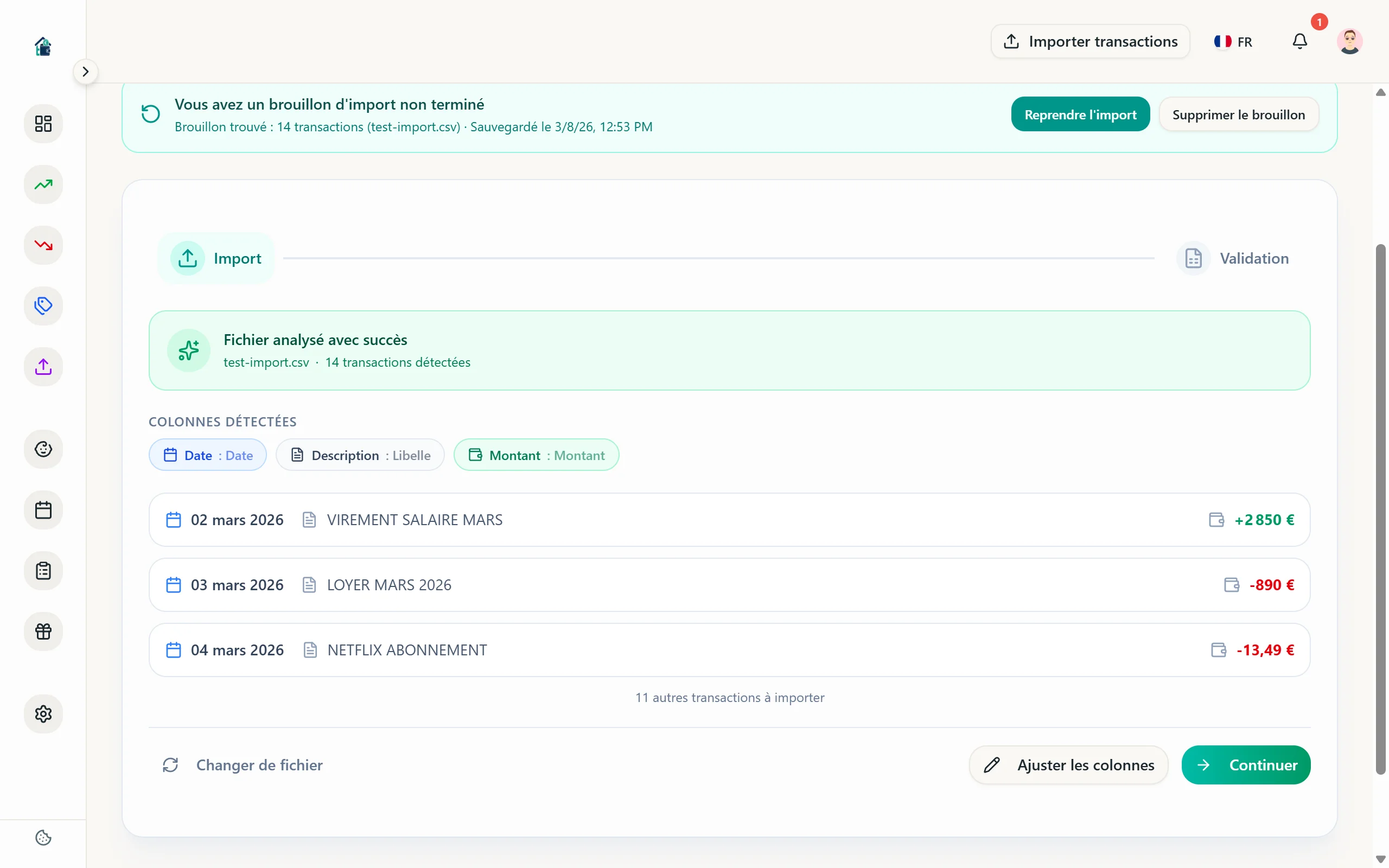 Column mapping interface
Step 4: Auto-categorization
This is where it gets useful. Homoney automatically assigns categories based on transaction labels. "CARREFOUR" goes to Groceries. "NETFLIX" goes to Subscriptions. "SHELL" goes to Fuel.
The system learns from your previous categorizations. The first import requires more manual corrections. By the third or fourth import, most transactions are categorized correctly without intervention.
Handling unrecognized transactions
Some lines will show up as "Uncategorized." Click on each one and assign the right category from the dropdown. Homoney remembers your choice for next time.
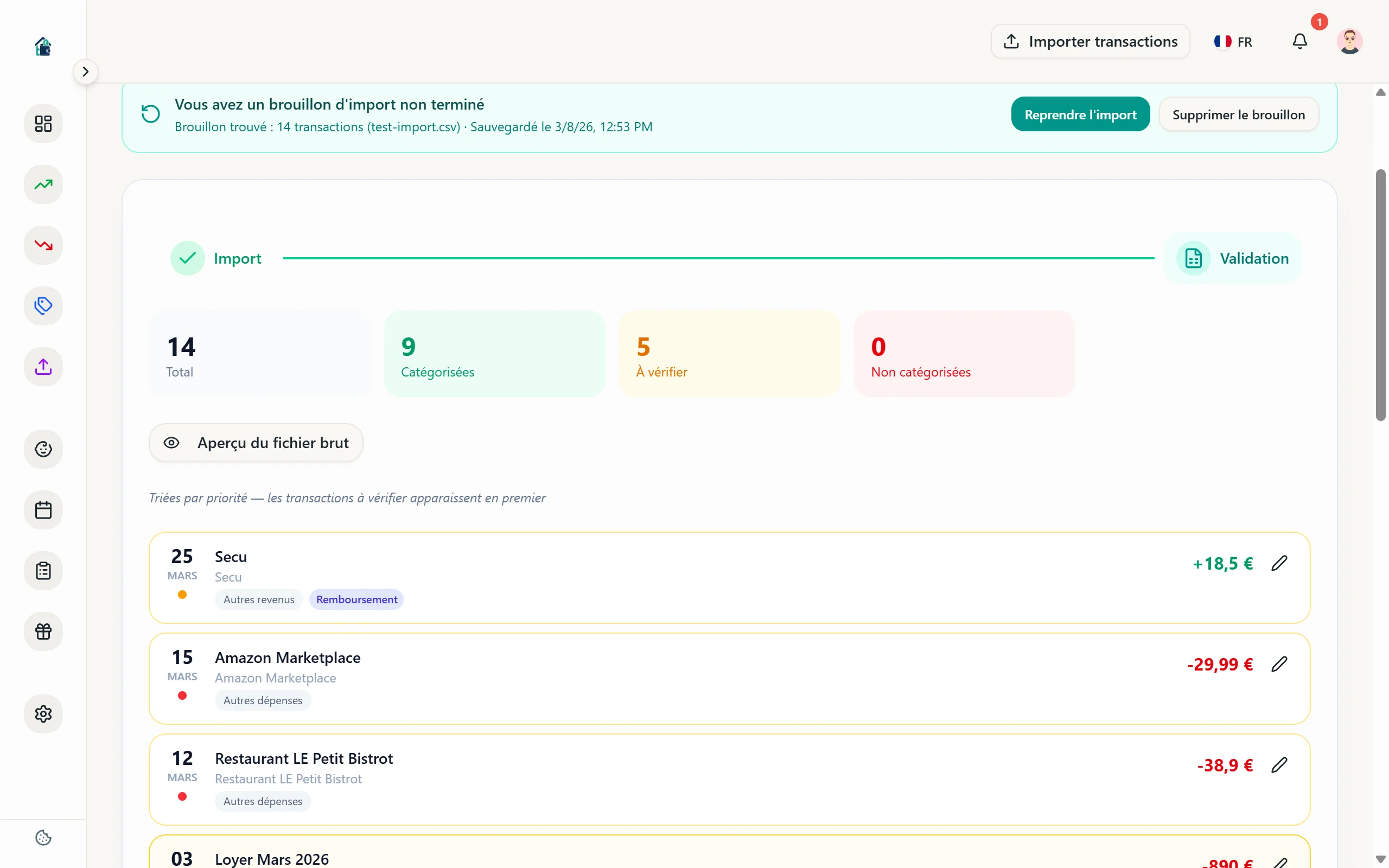 Assigning a category to an unrecognized transaction
Step 5: Validate and import
Once you're satisfied with the categorization, click Import transactions. The button shows the exact number of transactions that will be imported. Homoney starts the import and shows a real-time progress bar.
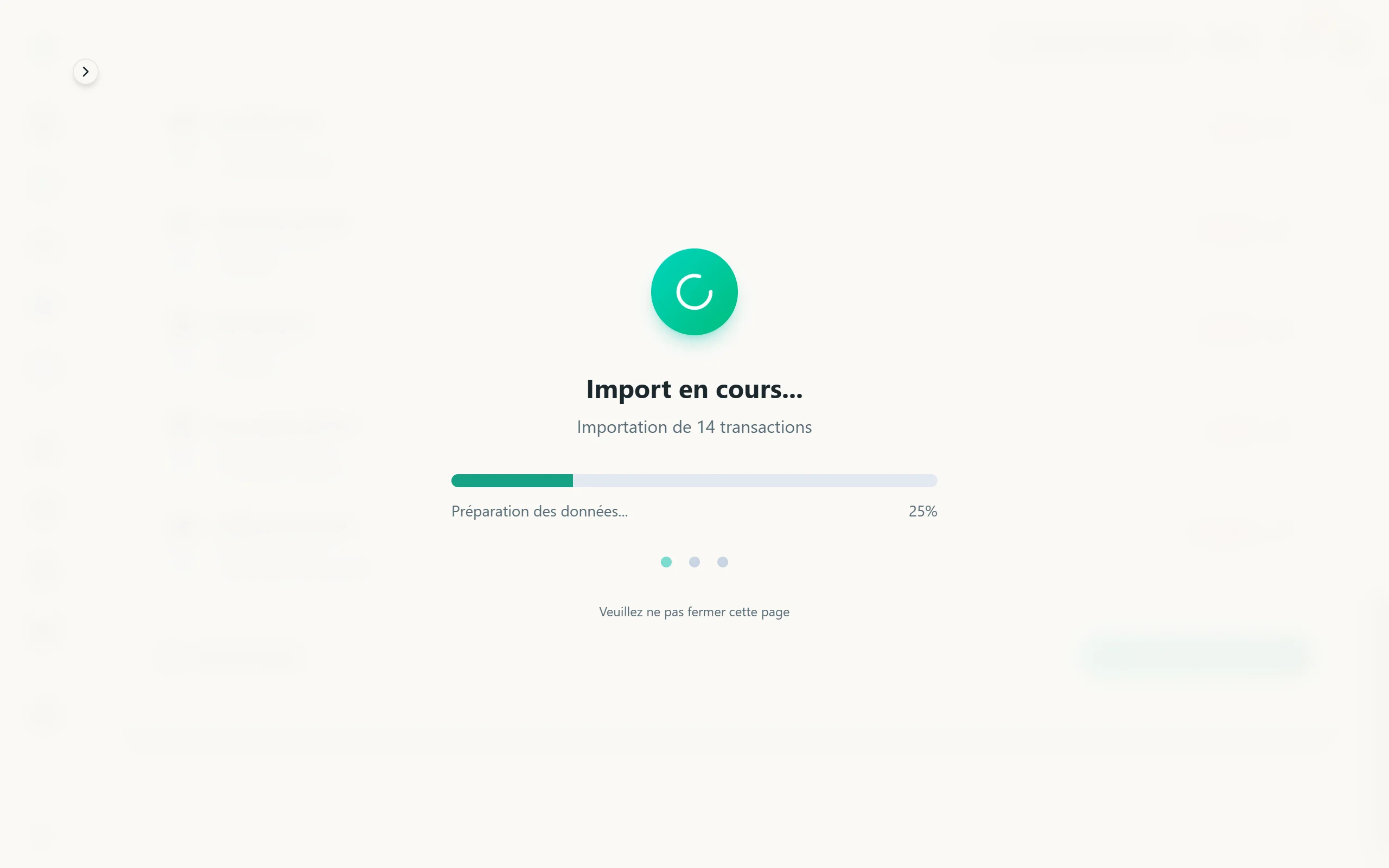 Import in progress with progress bar
Once complete, you're redirected to the expenses page with all your imported and categorized transactions. You can now view your expenses by category, compare with the previous month, and identify the categories that are over budget.
Tips for smooth imports
- Import once a month, right after your bank statement closes. It takes 5 minutes.
- Stick to the same bank export format each time.
- Correct miscategorized transactions promptly -- the auto-categorization improves with each correction.
- If you have multiple bank accounts, import each one separately.
After two or three months of imports, you will have a detailed picture of your spending patterns without having typed in a single transaction by hand.
