
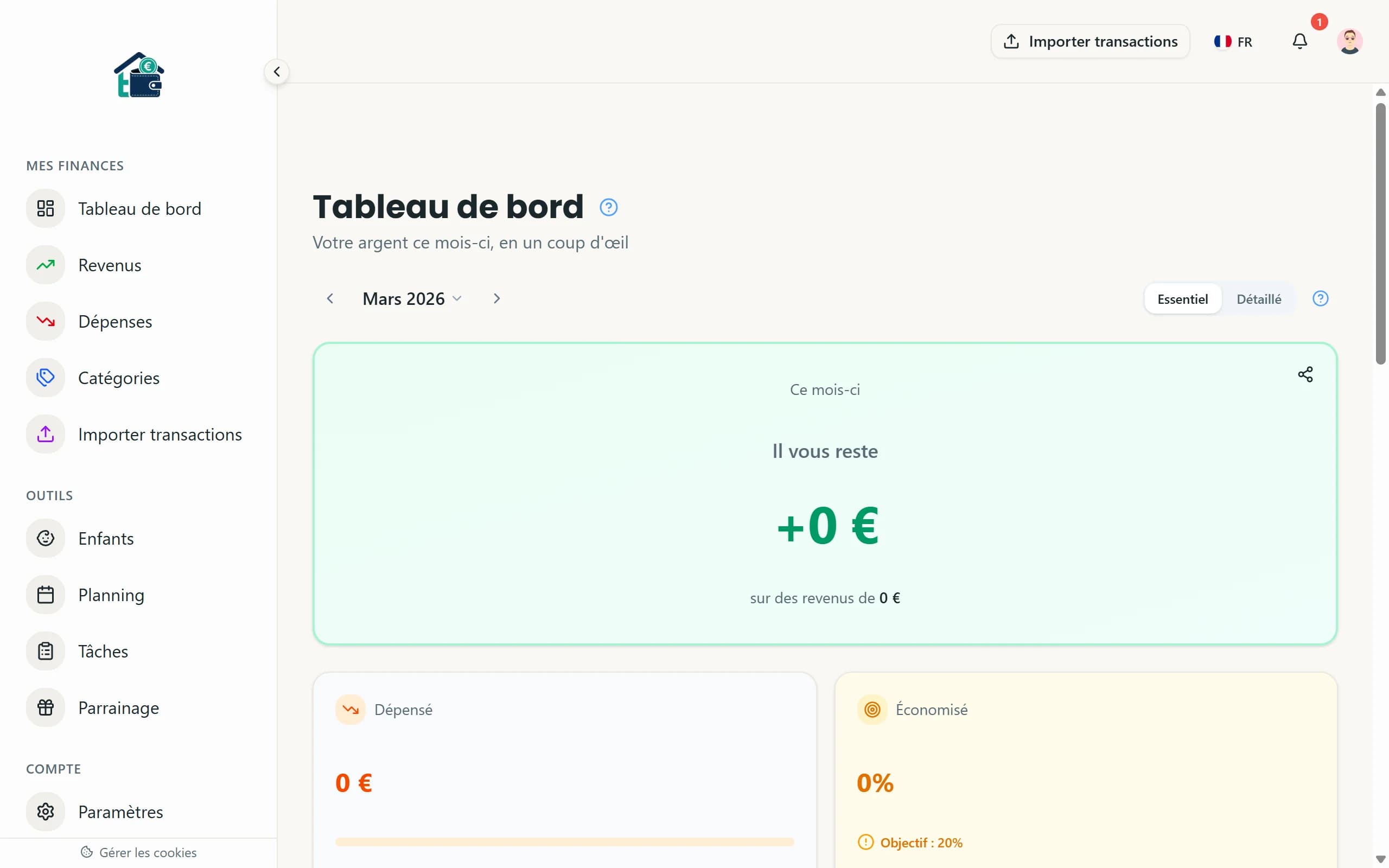
Getting started with Homoney takes about 10 minutes. By the end, you will have a working family budget that everyone in your household can access.
Step 1: Create your account
Head to the Homoney app and sign up with your email. You will receive a magic link -- no password to remember. Click it, and you are in.
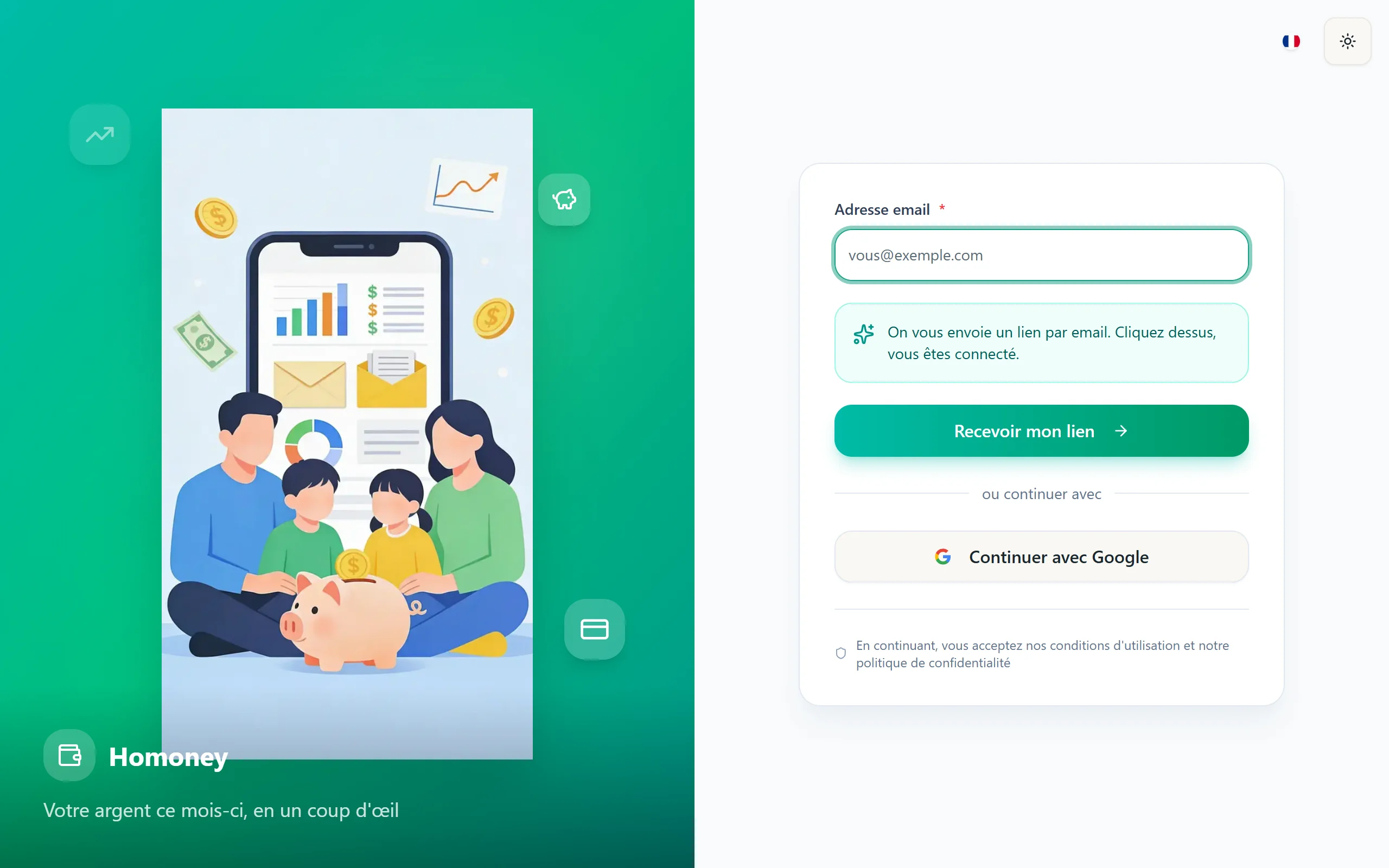 Account creation screen
Step 2: Go through onboarding
The onboarding wizard walks you through the basics. You will be asked to name your household, pick your housing type (renter, homeowner, etc.), and set your country and currency. Fill these in honestly -- they help Homoney suggest relevant default categories later.
Step 3: Add household members
Go to Settings and open the Members section. Click "Add member" and enter the name, email, and role for each person.
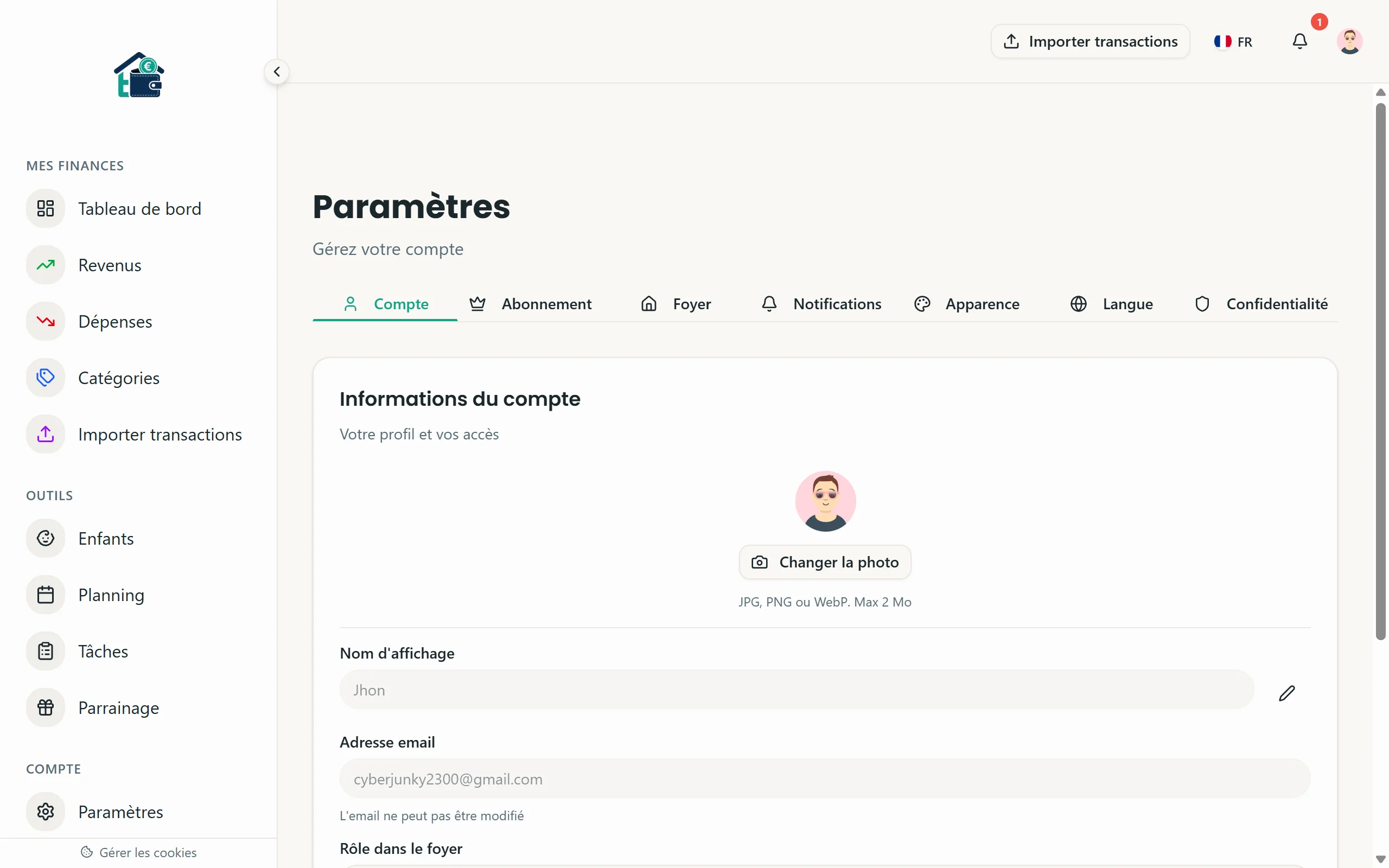 Adding a household member
Roles matter:
- Owner: Full control over the budget. That is you.
- Adult: Can view and add transactions. Your partner, typically.
- Child: Limited access, tied to the allowance module.
Each adult receives an invitation email. Once they accept, they see the same budget in real time.
Step 4: Set your monthly budget
Navigate to the Dashboard. You will see a field for your total monthly budget at the top. Enter the amount your household has available each month after taxes.
Then review the default expense categories. Homoney pre-fills common ones (Housing, Groceries, Transport, Subscriptions), but you can rename, delete, or add your own. Same for revenue categories -- salary, freelance income, government benefits, whatever applies to you.
Configure income sources
Go to the Revenues section and add each income source with its amount and frequency. If both adults earn a salary, add both. Recurring revenues will be created automatically each month.
Step 5: Choose your sharing mode
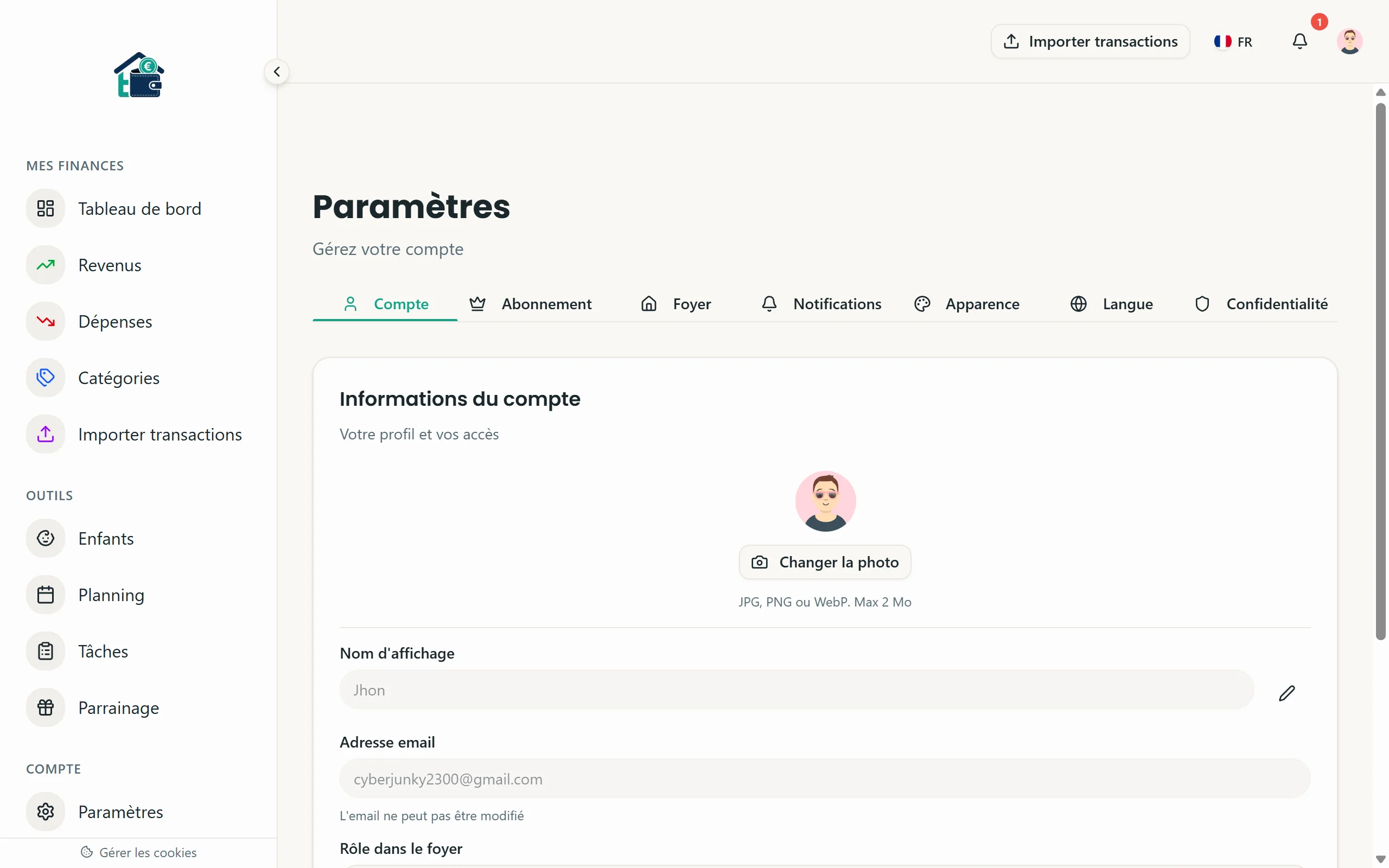 Budget sharing configuration
Under Settings, pick how shared expenses are split between adults:
- Equal (50/50): Each adult covers half.
- Proportional: Split based on each person's income. If one earns 60% of the total, they cover 60%.
- Custom: You define the percentages manually.
This affects how the dashboard displays each member's contribution and balance.
What to do next
Once the setup is done, start adding your first expenses. You can enter them manually from the Dashboard, or import a bank statement if you are on a Famille or Famille+ plan. The sooner you start tracking, the sooner you see where your money actually goes.
