
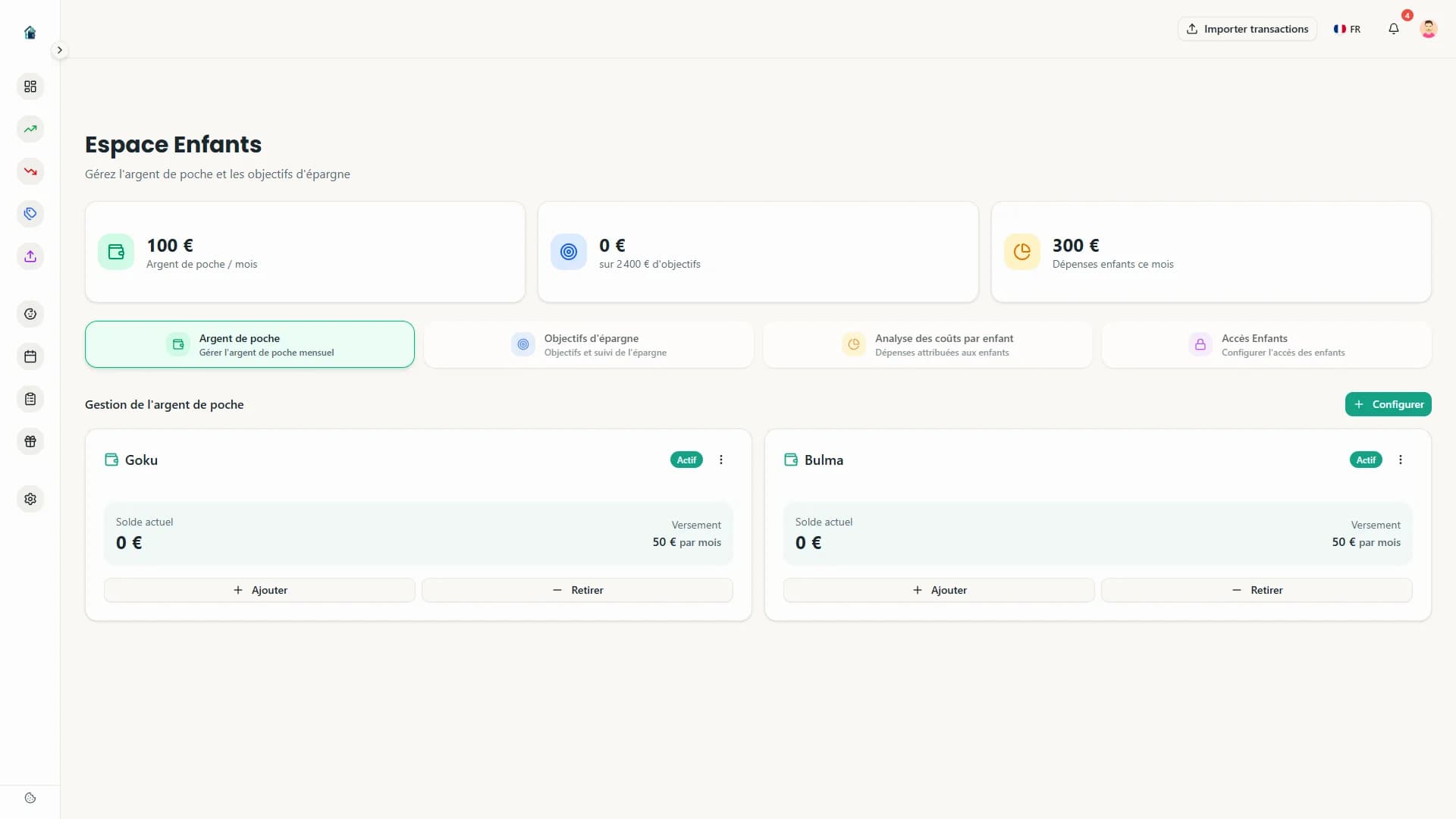
The allowance module in Homoney lets you set up automatic pocket money payments, track what your children spend, and help them save toward goals. It requires a Famille+ plan.
Step 1: Add your child as a household member
If you have not already, go to Settings, then Members. Add your child with the role "Child." Enter their name and, optionally, their date of birth. You do not need an email for children -- they do not get a separate login.
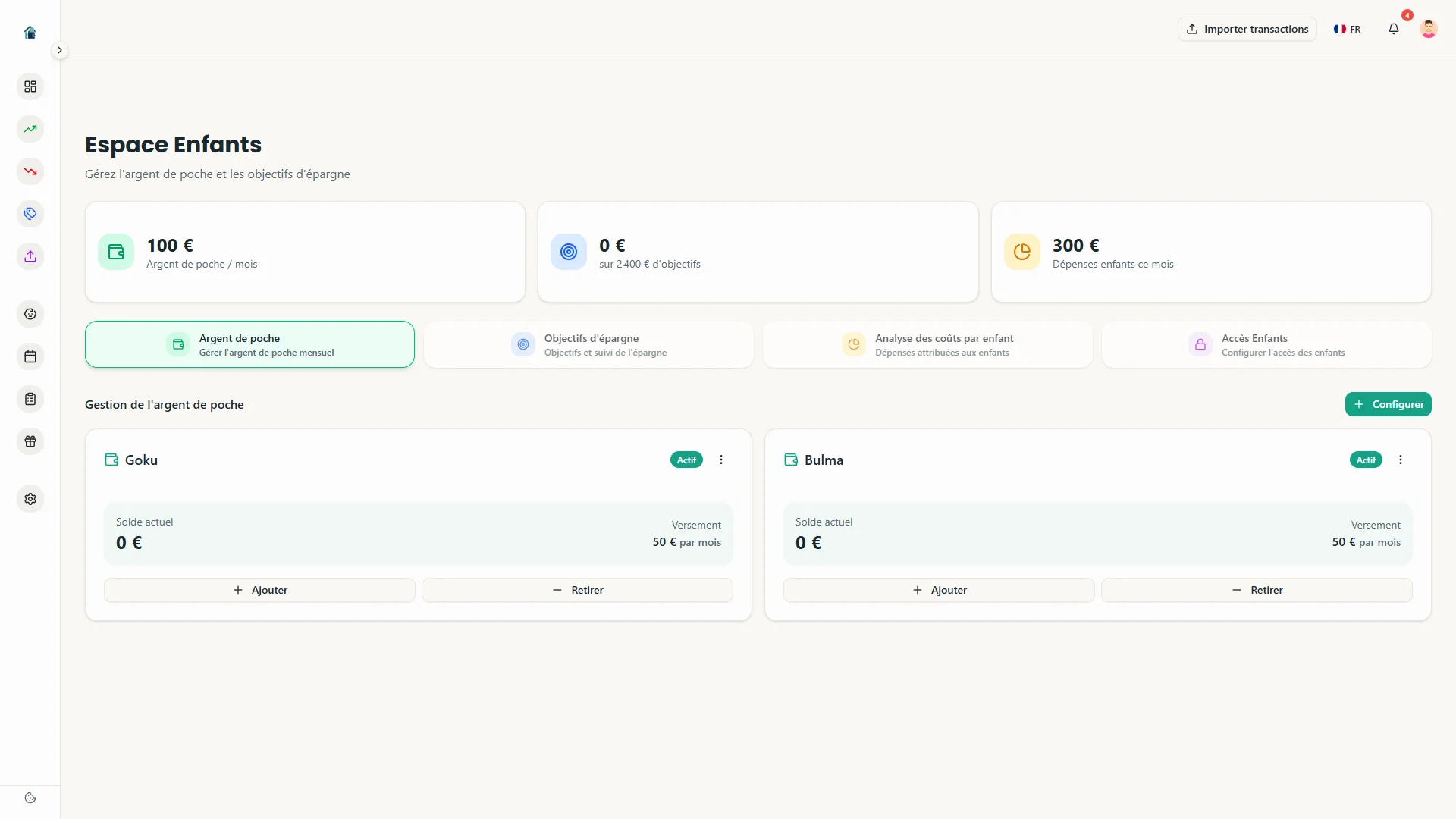 Adding a child member
Step 2: Configure the allowance
Navigate to the Children section from the sidebar. Select the child you just added. Click "Configure allowance" and fill in:
- Amount: How much per payment (e.g., 10 euros per week).
- Frequency: Weekly, biweekly, or monthly.
- Payment day: Which day the payment lands. For weekly, pick a day of the week. For monthly, pick a day of the month.
- Start date: When payments begin.
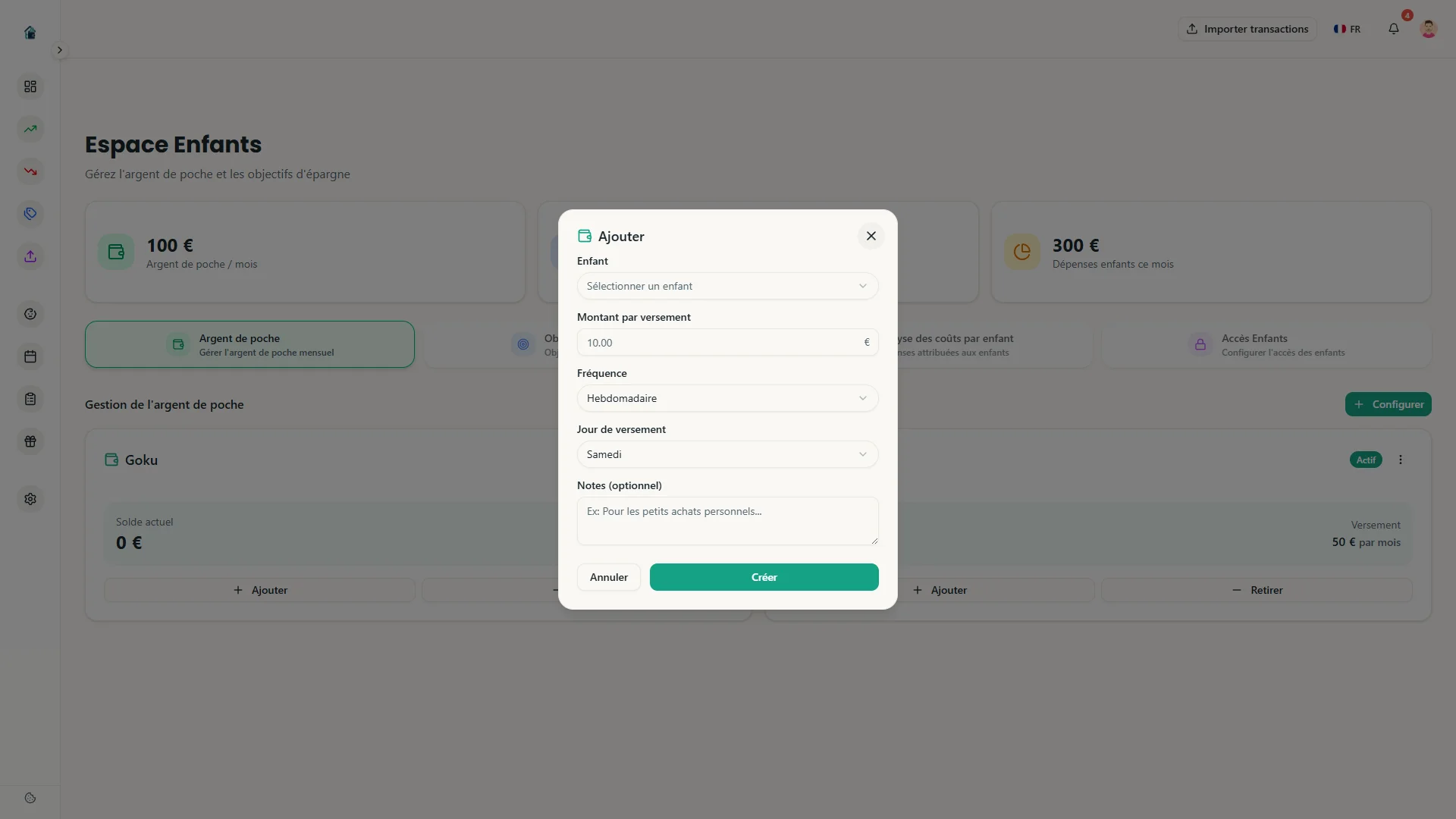 Allowance configuration form
Once saved, Homoney automatically creates a credit transaction on the scheduled day. No manual work needed.
Step 3: Track spending
From the child's dashboard, you can manually add debit transactions to record what they spend their money on. Each transaction has a description and amount.
This gives you (and them) a clear view of their balance: total received minus total spent.
The child's balance view
The dashboard shows:
- Current balance
- Total received this month
- Total spent this month
- Transaction history
It is a simplified version of the main budget dashboard, designed for tracking a single child's finances.
Step 4: Set up savings goals
This is where it gets interesting for kids. Click "Add savings goal" on the child's page. Define:
- Goal name: What they are saving for (e.g., "New headphones").
- Target amount: How much it costs.
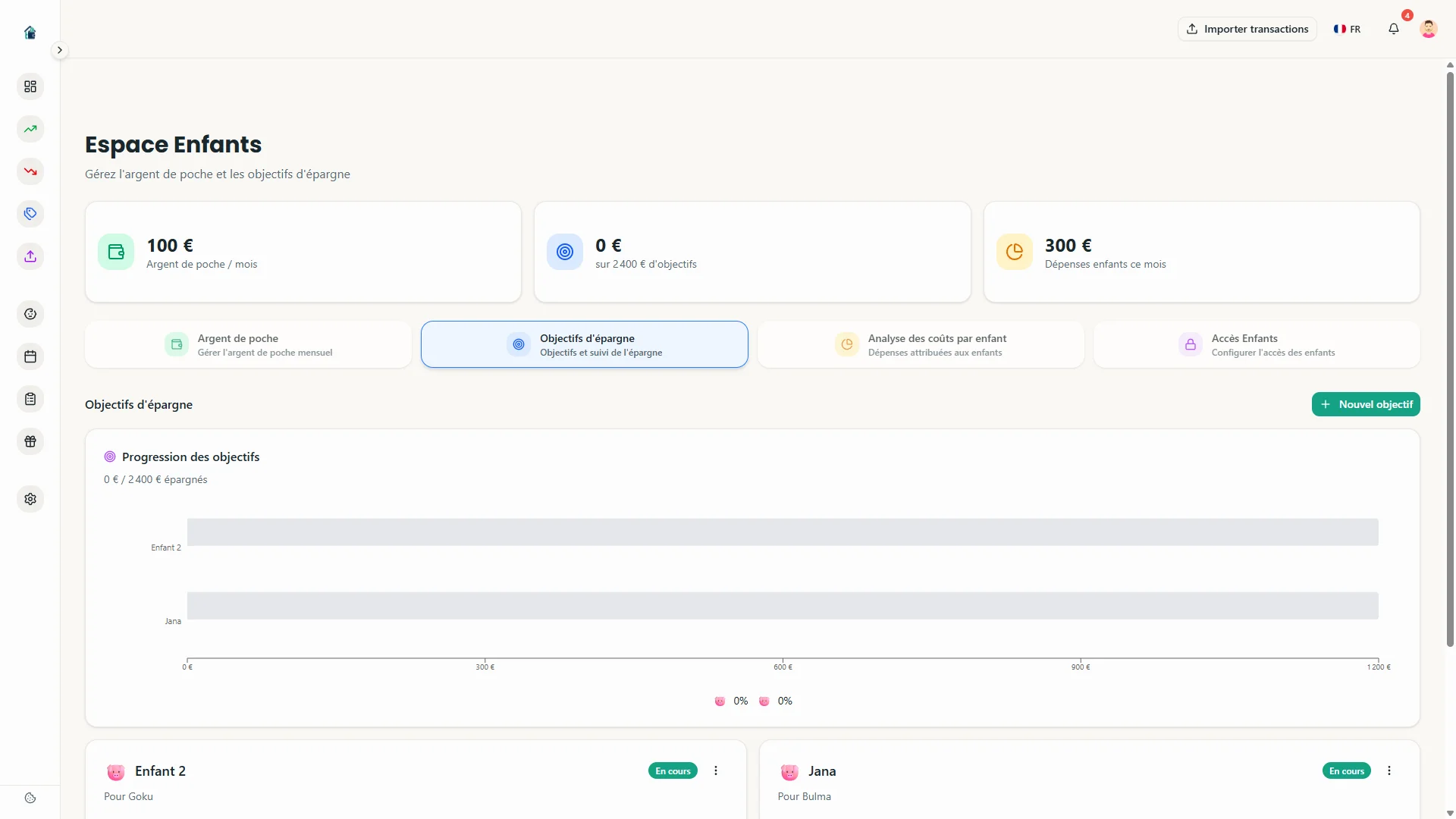 Setting a savings goal
The child's dashboard then shows progress toward each goal -- a visual bar that fills up as savings accumulate. It makes the abstract concept of saving concrete and motivating.
Step 5: Pause or adjust
Life changes. If you need to pause the allowance temporarily (summer camp, grounding, budget adjustment), go to the allowance settings and set the status to "Paused." Payments stop immediately. Set it back to "Active" when ready.
You can also adjust the amount at any time. The new amount applies from the next scheduled payment onward.
A few practical notes
- Automatic payments are processed daily at 8:00 AM (Paris time) by a Cloud Function. If you set up a weekly payment on Fridays, the credit appears Friday morning.
- The allowance module is independent from the main family budget. Children's pocket money does not mix with household expense tracking.
- You can manage multiple children, each with their own allowance settings and savings goals.
Step 6: Give your child their own access
Homoney lets your children access their own space without needing a user account. From a child's profile, click Configure child access.
You set up:
- The child: select which household member gets access
- A 4-digit PIN code: this is what the child will use to log in
- Permissions: choose what the child can see (their allowance, savings goals, family planning)
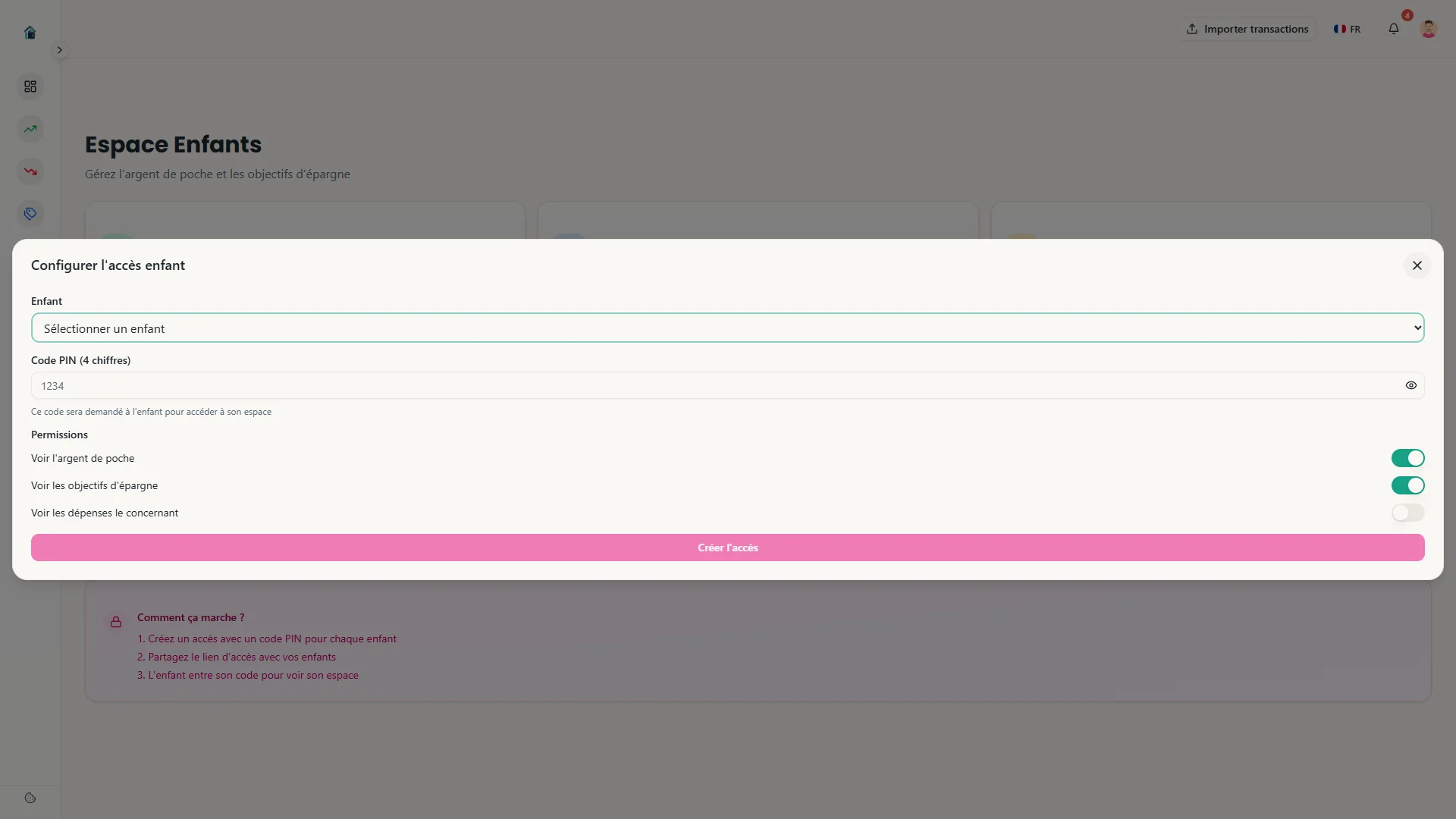 Configuring child access with PIN code and permissions
Once configured, share the child access link with your child. They can open it on their phone, tablet, or computer.
Step 7: The child's space
When the child opens the link, they see a simple login page. Their name is displayed along with a numeric keypad to enter their 4-digit PIN.
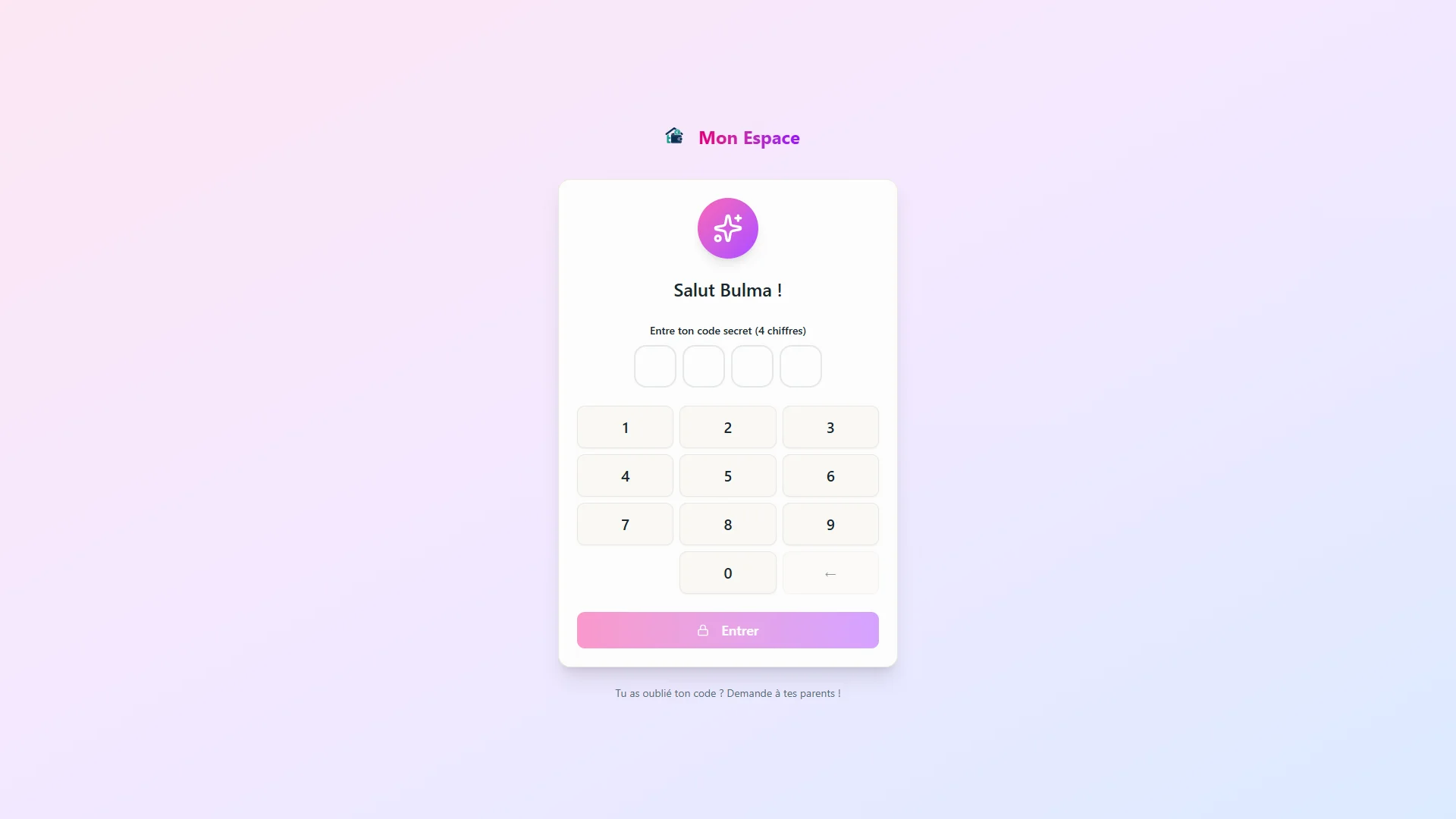 Child login page with PIN keypad
No complex password, no email -- just a 4-digit code. It is designed to be accessible even for young children.
The child dashboard
Once logged in, the child accesses their personal space "My Space." They can see:
- My Planning: tasks and events assigned to them
- My Allowance: their current balance and expected monthly amount
- My Goals: progress toward their savings goals
- Did you know?: educational tips about money management
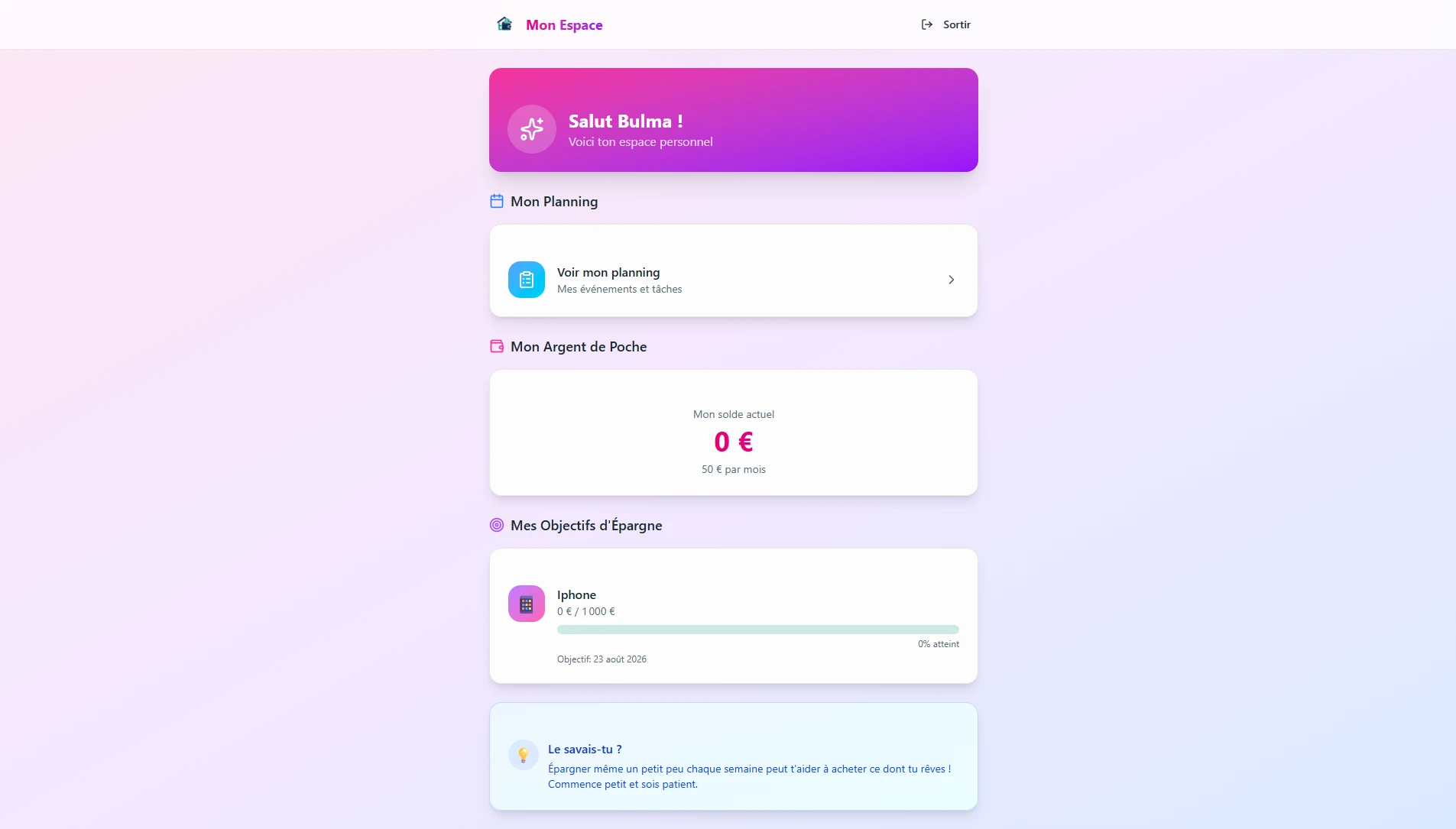 Child dashboard - My Space
It is a simplified space, designed for children. They only see what concerns them, with no access to the household finances. The child can check their balance, track their goals, and view their schedule independently.
Install the app on your child's phone
For even quicker access, the child can install "My Space" directly on their phone. An "Install the app" button appears automatically on the dashboard. On Android, one tap is all it takes. On iPhone, go to Share then "Add to Home Screen." Once installed, the app opens like any other application, with its own icon.
The goal is to give children a structured experience with money, with just enough visibility for parents to guide them along the way.
